Akamai for PingOne Advanced Identity Cloud custom domains
Akamai is a global leader in Content Delivery Networks (CDNs) and cloud security. It operates a distributed network of servers positioned between end users and origin servers. Its core functions include:
- Speeding up website delivery by caching content closer to the user.
- Providing Web Application Firewalls (WAF), DDoS mitigation, and bot management.
- Running logic at the edge to process requests before they ever reach the back-end infrastructure.
Why use Akamai together with P1AIC
When using Akamai to front a P1AIC custom domain, it enables security measures to be applied to that domain. This includes Web Application Firewall rules, DDoS mitigation and bot management. Other Akamai capabilities, such as caching and edge services, are not typically used for an integration with P1AIC.
Protecting the whole tenant
This post discusses using Akamai to serve a custom domain. Custom domains are set up on a realm level and only affect the realm they are set up in. A P1AIC tenant also has a default domain that is always active and accessible. To protect the entire P1AIC tenant with Akamai, the add-on feature Proxy Connect must be used, which routes all traffic through a customer-owned proxy. This blog post is not about Proxy Connect.
How it works
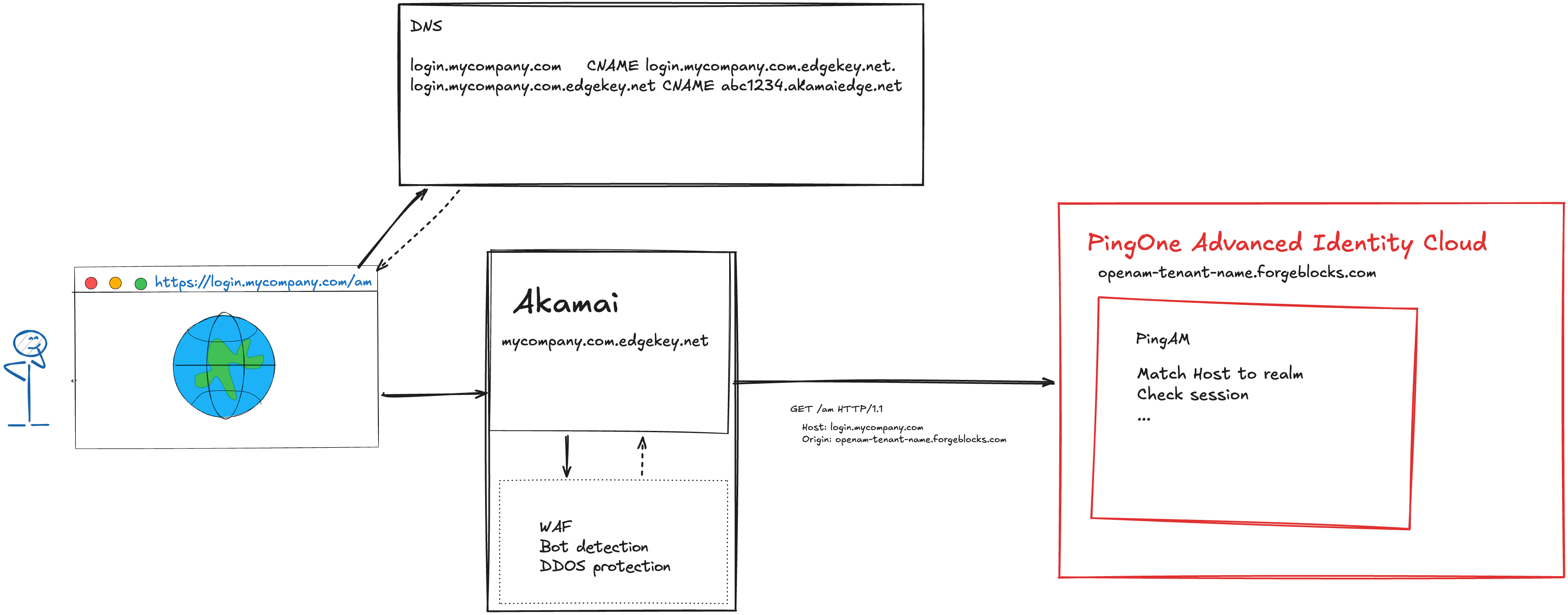
Overview of Akamai integration with PingOne Advanced Identity Cloud custom domains
Akamai acts as a reverse proxy between the browser and the P1AIC realm. This traffic flow is established via DNS resolution.
Without Akamai, the DNS record for the custom domain points directly to the P1AIC tenant via a CNAME.
With Akamai, the custom domain name points to an Akamai Edge hostname instead.
When a browser requests the custom domain, Akamai intercepts the request, applies security rules and forwards the safe traffic to P1AIC. Akamai must preserve the original Host header, so P1AIC route the request to the correct realm.
PingOne Advanced Identity Cloud setup
The majority of the setup is done in Akamai. P1AIC just needs to know which custom domain to use and how requests are mapped to realms.
Set up a custom domain in the alpha or bravo realm
In the tenant admin console, open Realm Settings by clicking on the alpha or bravo realm on the top left corner > Realm Settings, then Custom Domain.
Click Add a Custom Domain and enter the domain details, then click Verify.
More information on Custom Domains can be found in the Custom Domain Documentation.
Validate the Base URL Source service
In order for incoming requests to be mapped to the correct realm, the Base URL Source service of the realm must be set to Host/protocol from incoming requests. This is the default value, but ensure it is correctly set by going to Native Consoles > Access Management > Services > Base URL Source
Additional Cookie Domain
Finally, the custom domain needs to be set up as an additional cookie domain to enable sign-on on that domain. In the P1AIC tenant admin console, click on your username on the top right corner > Tenant Settings > Cookie, then add the domain in the Additional Cookie Domains field.
More information on Cookie Domains can be found in the documentation.
Akamai setup tips
Akamai acts as a reverse proxy, intercepting requests to the custom domain, validating them, and sending them to the “Origin” (your P1AIC tenant, tenant-name.forgeblocks.com).
The Origin Configuration
In the Akamai Property Manager, the origin is set to your P1AIC tenant FQDN (e.g., tenant-name.forgeblocks.com).
Forward Host Header
This is the most critical Akamai setting. For P1AIC to route a request to the correct realm, it relies on the incoming Host header. Akamai must be configured with a Forward Host Header set to Incoming Hostname. As a result, Akamai changes the Host header of the outgoing request to match the user’s original request (login.mycompany.com) rather than the origin hostname (tenant-name.forgeblocks.com). This allows the BaseURL Source service in P1AIC to match the host to the realm where the custom domain is configured.
Header size restrictions
The Session and OAuth information stored in cookies regularly cause large header sizes when communicating with P1AIC. The default maximum header size allowed by Akamai may be too low. Ensure it is set to at least 16 KB for /am endpoints.
Cache settings
P1AIC serves highly dynamic content (authentication journey callbacks, tokens, etc). Caching these responses can break authentication flows or introduce security vulnerabilities. Ensure caching is disabled for all P1AIC paths.
Fine-tune bot protection
If bot protection is active, ensure legitimate traffic is not blocked by Akamai. Grey-zone bots, such as SEO or AI scrapers that may be allowed on a typical website, can safely be blocked. However, ensure that legitimate traffic is not restricted in any way. This may require a period of monitoring before enabling blocking rules, followed by regular reviews.
Debugging issues
When reviewing issues, it is important to keep Akamai in mind. When debugging a journey, for example, ensure that requests arrive in P1AIC by reviewing the access logs. If expected calls don’t appear, they were likely blocked by Akamai.
If P1AIC returns data from the root realm instead of the alpha or bravo realm, it most likely means the Host header is not set. Review the Forward Host Header section to fix it.
Conclusion
Securing a PingOne Advanced Identity Cloud custom domain with Akamai is relatively straightforward, provided the Host header is set correctly. For full tenant protection, the Proxy Connect add-on feature is required. Without it, only requests to the custom domain are protected.